

Work in a Session
Start a Session on a Repo, drive it while your team watches, and get its work onto GitHub.
What you need
Section titled “What you need”- An account on a Hub with at least one online Runner.
- Your Claude credential on your Account page. The Sessions you start run on it.
- A Repo with an Environment. Starting the first Session on a Repo takes you there.
Start a Session
Section titled “Start a Session”-
Press New Session, at the top of the sidebar.
-
Pick the Repo, or type it as
owner/name. Branch fills in with the Repo’s default branch. -
Choose where Claude commits:
- Leave Work on a new branch on to commit to a new branch,
claude/<session id>. - Turn it off to commit to the branch itself.
- Type a new name and pick Create branch ’…’ to start a branch of your own.
- Leave Work on a new branch on to commit to a new branch,
-
Leave Runner on Any online Runner, and press Start Session.
The Session opens with a Starting… banner. Show log follows the Runner as it clones the Repo and boots the Sandbox.
Prompt it while others watch
Section titled “Prompt it while others watch”You started the Session, so you drive it. Everyone else with access to the Repo can open it and follow along live, but can’t prompt it: their prompt box says who drives.
- While Claude works, new prompts wait in the Prompt queue and run in order.
- To get a queued prompt in now, press Steer on it. Claude reads it at its next step, usually after the current tool call, and the transcript marks it Steered in.
- To stop the Turn, press Stop in the prompt box. A running Bash command moves to the background instead of being killed.
Claude never asks for permission to run a tool. Everything it runs stays in the Session’s Sandbox: see Security model.
Answer Claude’s questions
Section titled “Answer Claude’s questions”When Claude asks a question, the Session’s row gets an amber dot and its header says Waiting on you. A card above the prompt box asks the questions one at a time.
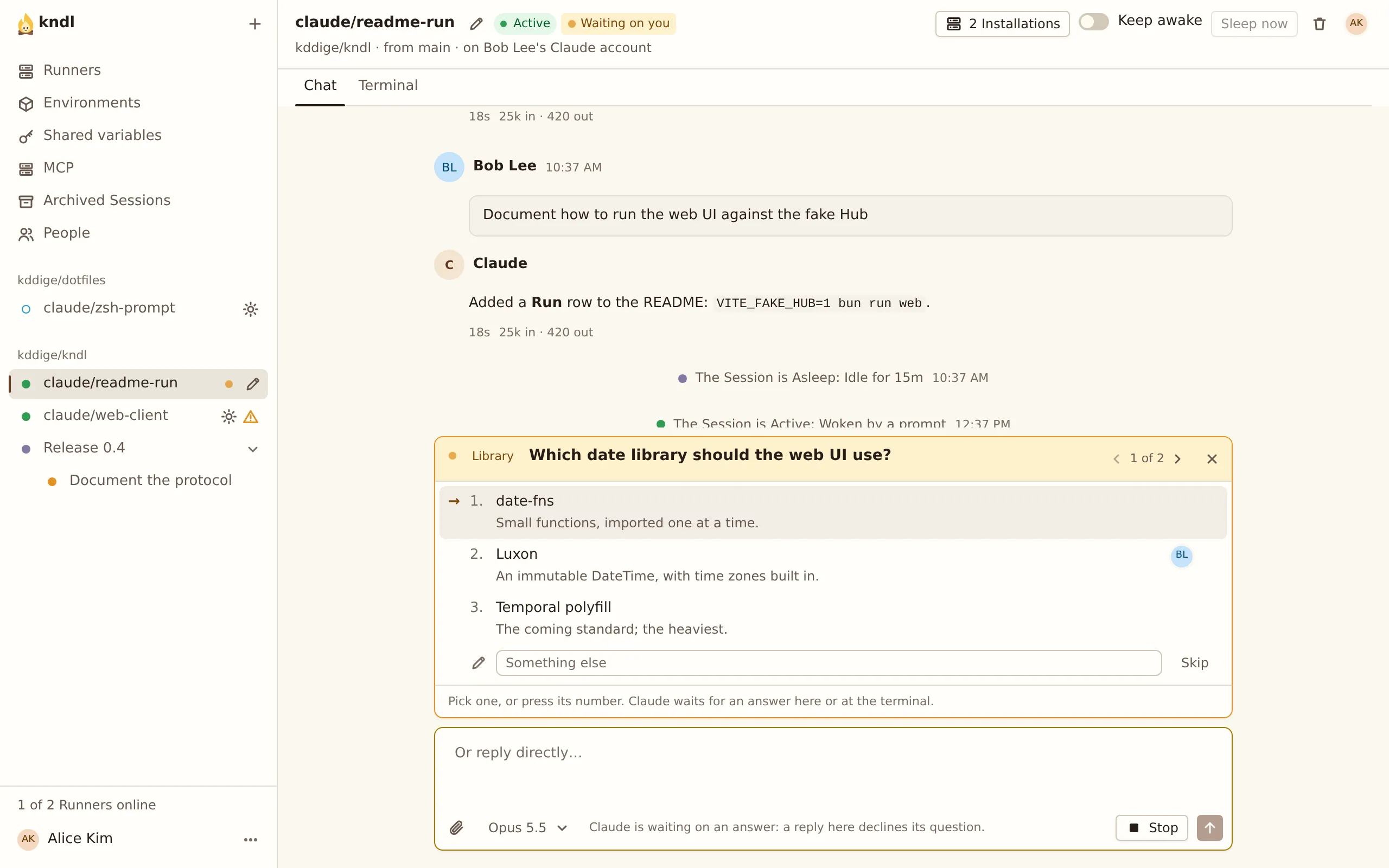
- Click an option, or press its number.
- Type your own answer in Something else and press Enter.
- Press Skip to leave a question unanswered.
You answer, and everyone in the Session sees your picks. The answers go to Claude after the last question. To reply in your own words, type in the prompt box (Or reply directly…) and press Reply.
Use the terminal
Section titled “Use the terminal”The Terminal tab shows Claude Code’s screen, live, and you can type into it. Use it for what the chat doesn’t cover: Claude Code’s other dialogs, a subagent’s questions, Esc and Ctrl-C.
Only you see it. Others in the Session don’t, since the terminal is where your Claude token is easiest to see. Fit to my window sets its size to yours.
What Claude can use
Section titled “What Claude can use”Claude Code runs in /workspace, the Repo’s checkout. The Repo’s own CLAUDE.md, .claude/ skills, agents, commands, hooks and settings, and .mcp.json apply as they would on your machine. Settings on the Runner’s machine never apply.
The Hub can add more MCP servers to every Session on a Repo: see Add a remote MCP server.
Get the work out
Section titled “Get the work out”Ask Claude to commit, push and open a pull request:
Commit this, push the branch and open a pull request.Claude uses git and gh once the Hub has its GitHub App: see Git from Sessions.
Next steps
Section titled “Next steps”kndl is an independent project. It is not affiliated with or endorsed by Anthropic. Claude and Claude Code are trademarks of Anthropic, PBC. About kndl